


A little wash.
A little clearer.
Pick 5 photos you no longer need. AI finds similar ones. Meet the little raccoon helping you make room for what matters.
Your choices.
A place to start.
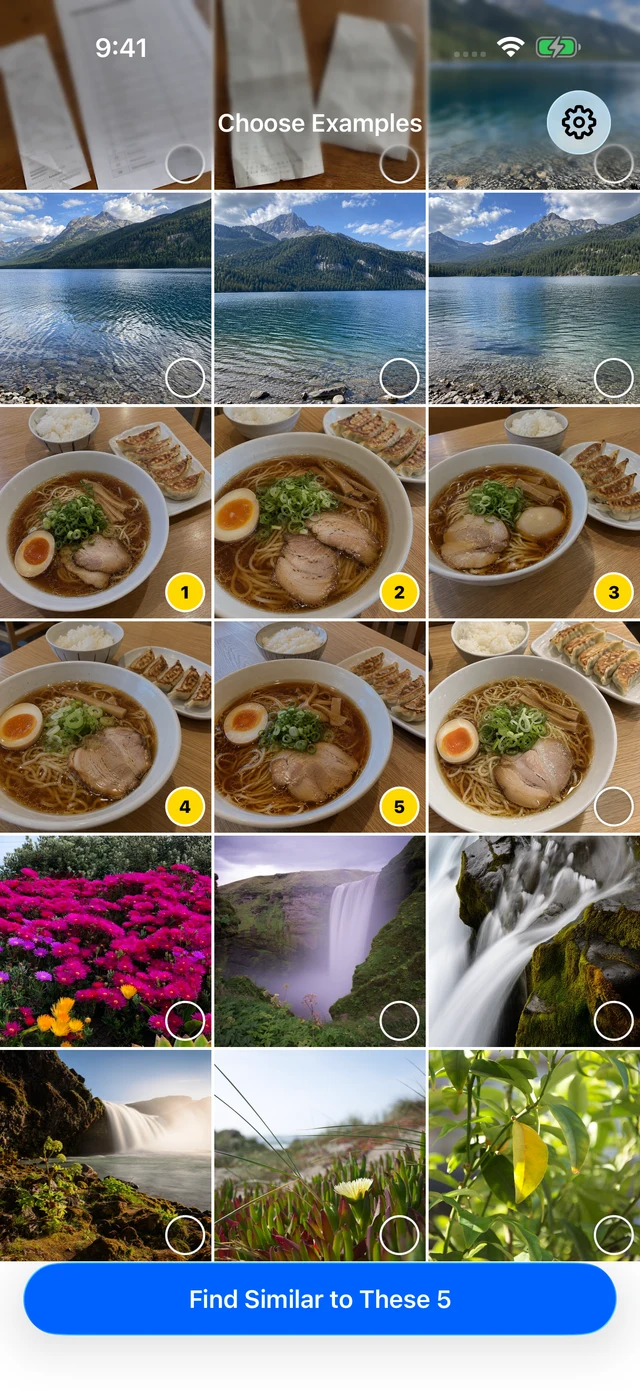
Food shots, old notes, and the photos you no longer need. The five you choose help Wash find similar photos in your library.
Keep the photos
you want to keep.
Deselect anything you want to keep. Photos are deleted only after you approve the iOS confirmation dialog.
01 / HOW IT WORKS
AI finds.
You decide.
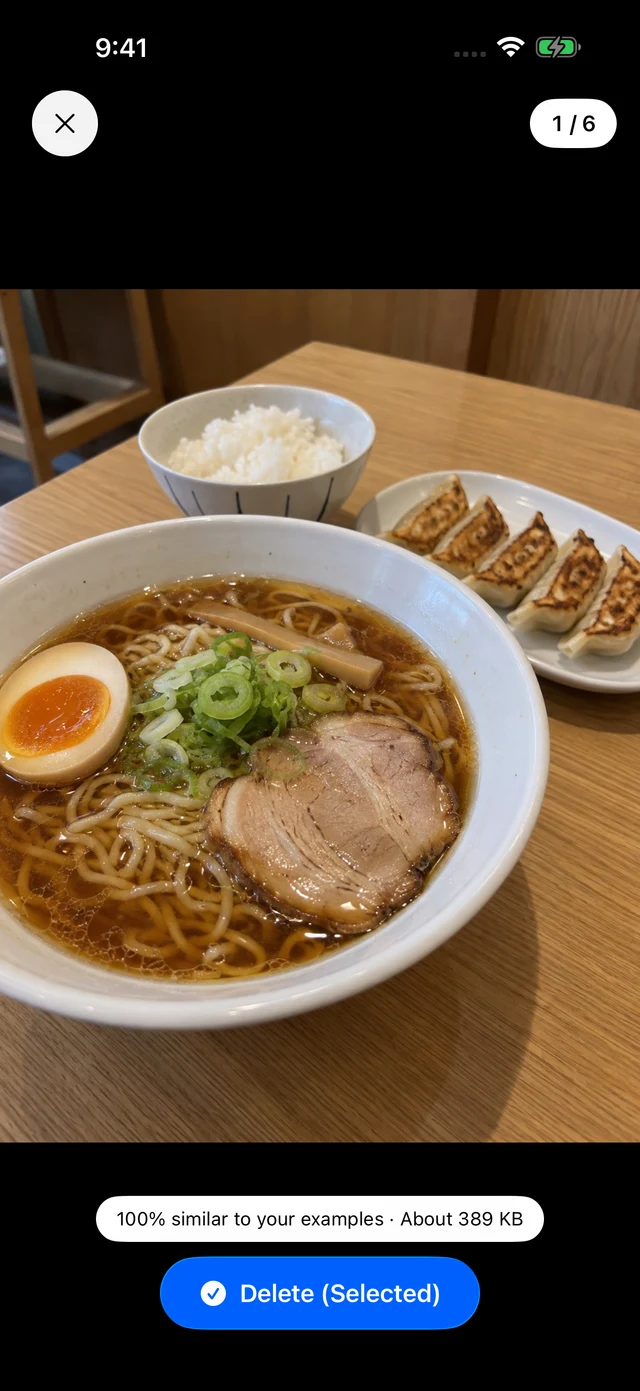
Too many food shots. Notes you no longer need. The 5 photos you pick give Wash a place to start.
Choose 5 photos to delete. Wash uses your choices to find similar images across your photo library.
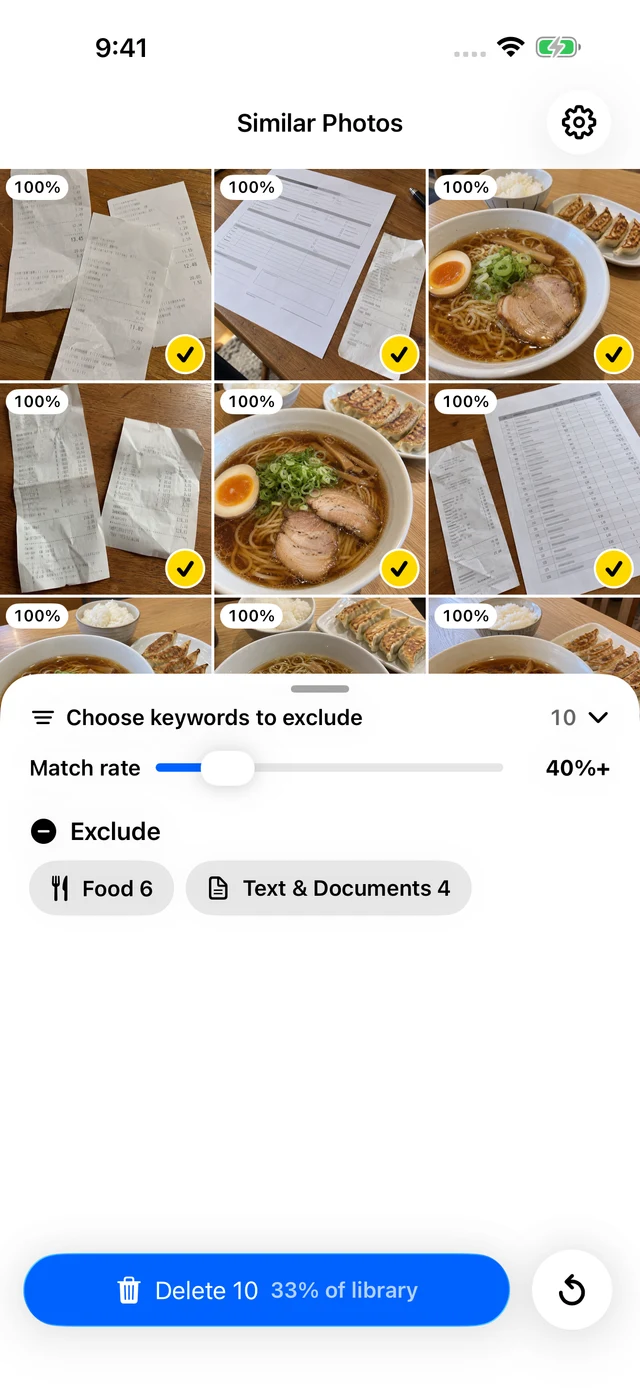
Adjust the match-rate slider and exclude keywords to refine the results. Deselect anything you want to keep.
Open any photo for a closer look. Delete your selection together, only after you confirm in the iOS dialog.
03 / GOOD TO KNOW
A few good questions.
Are my photos uploaded anywhere?
No. Photos and analysis results are not sent off your device; the analysis runs on your iPhone. Purchase verification and restore use RevenueCat, which does not handle your photos.
Does Wash delete photos automatically?
No. Matches appear selected, but you can deselect anything you want to keep. Nothing is deleted until you tap delete and approve the iOS confirmation dialog.
Can I use Wash for free?
You can delete up to 10 photos in total for free. A one-time in-app purchase removes the deletion limit. There is no subscription or automatic renewal. Check the app for the purchase price.
What happens to deleted photos?
Photos remain in Recently Deleted in the Photos app for a period of time. They are not permanently erased right away.
What about iCloud Photos?
Wash works with the photo library you allow it to access. If you use Optimize iPhone Storage, loading photos may involve a connection to your own iCloud through Apple’s services.